> ## Documentation Index
> Fetch the complete documentation index at: https://docs.pyannote.ai/llms.txt
> Use this file to discover all available pages before exploring further.
# How to use the pyannoteAI API playground
> Learn how to use the pyannoteAI API playground to test speaker diarization, speaker identification, and speech-to-text orchestration without writing code.
The API playground lets you test pyannoteAI directly from the dashboard before writing code.
You can run diarization, speaker identification, and speech-to-text (STT) orchestration workflows in one place, then move to API calls to integrate pyannoteAI into your application.
 ## Run a job in the playground
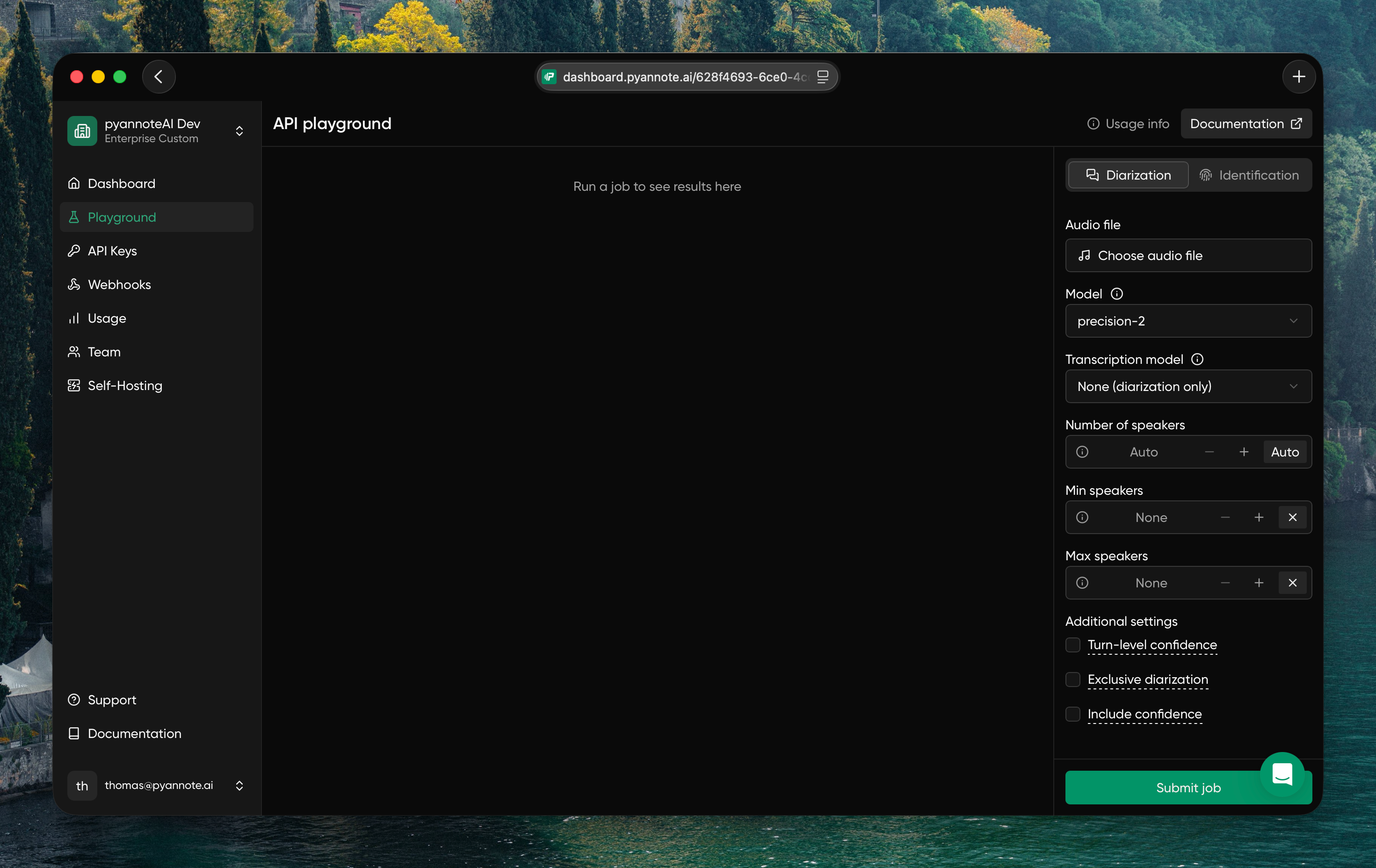
In the dashboard, open [**Playground**](https://dashboard.pyannote.ai/playground) and select the mode you want to test:
* **Diarization**: identify who spoke when
* **Identification**: match speakers against voiceprints
Configure your job in the right panel:
* **Audio file**: upload a file or add a URL to a file you want to process
* **Model**: choose the diarization model
* **Transcription model**: select a transcription model when you want STT orchestration (or keep it off for diarization only)
* **Speaker controls**: optionally set `numSpeakers`, or use `minSpeakers` and `maxSpeakers`
* **Additional settings**: enable confidence outputs or exclusive diarization when needed
Click **Submit job** and review the output directly in the playground UI.
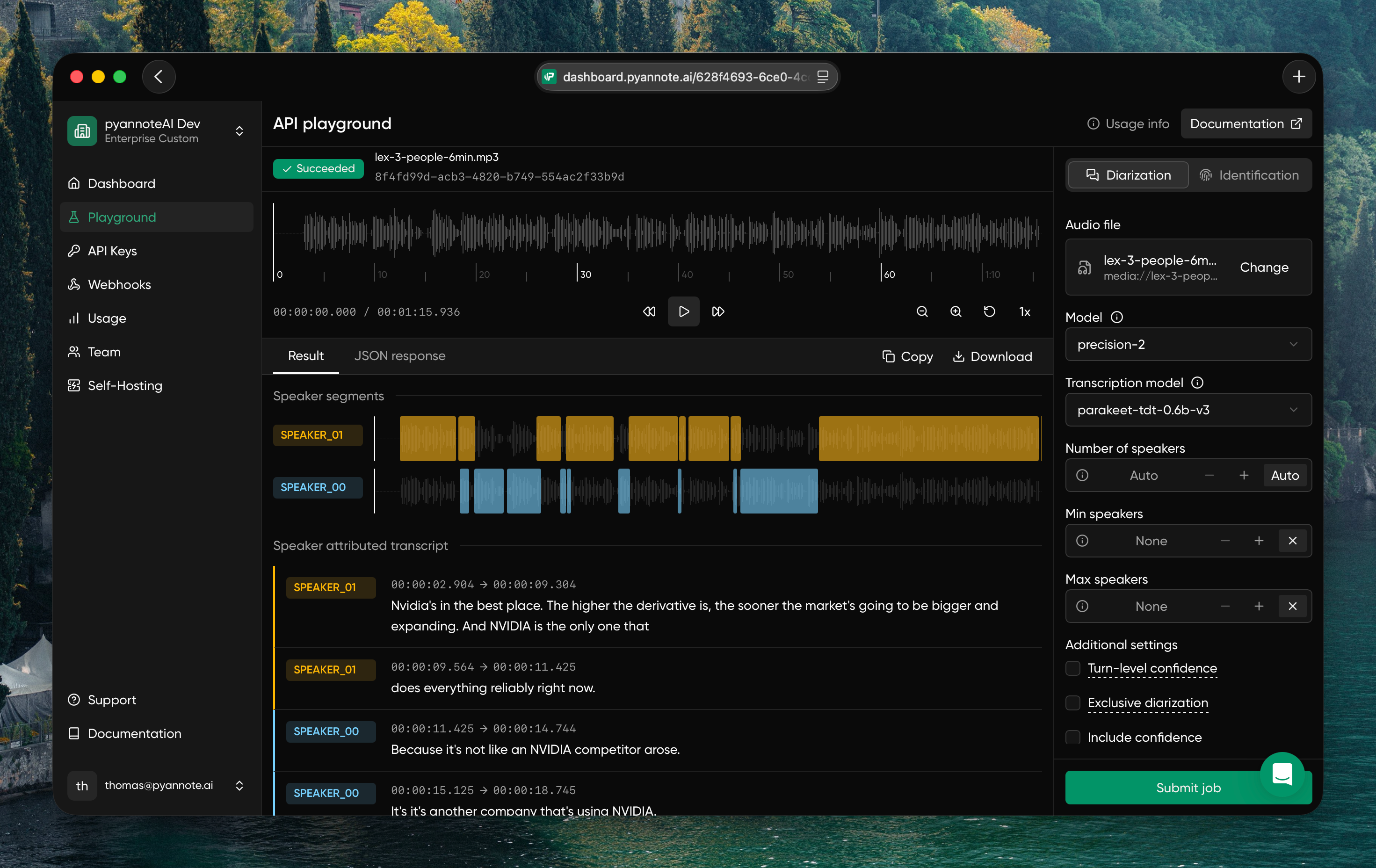
Once the job is complete, you can view the result in the interactive UI.
To download the output, click **Download** and choose the format you want.
## Run a job in the playground
In the dashboard, open [**Playground**](https://dashboard.pyannote.ai/playground) and select the mode you want to test:
* **Diarization**: identify who spoke when
* **Identification**: match speakers against voiceprints
Configure your job in the right panel:
* **Audio file**: upload a file or add a URL to a file you want to process
* **Model**: choose the diarization model
* **Transcription model**: select a transcription model when you want STT orchestration (or keep it off for diarization only)
* **Speaker controls**: optionally set `numSpeakers`, or use `minSpeakers` and `maxSpeakers`
* **Additional settings**: enable confidence outputs or exclusive diarization when needed
Click **Submit job** and review the output directly in the playground UI.
Once the job is complete, you can view the result in the interactive UI.
To download the output, click **Download** and choose the format you want.
 ## Credit usage and limitations
* You receive free credits at signup, which can be used to run playground jobs.
* Playground jobs consume your credits exactly like normal API requests, based on your plan.
* Usage from the playground appears in your normal **Usage** and **Billing** pages.
* The playground has stricter rate limits than direct API usage.
* The playground is best for interactive testing; use direct API integration for higher-volume automation.
## Next steps
Once you're ready to integrate pyannoteAI into your application, you can follow these tutorials to get started with the API:
* [How to diarize an audio file](/tutorials/how-to-diarize-audio)
* [Identification with voiceprints](/tutorials/identification-with-voiceprints)
* [Speech-to-text with diarization](/tutorials/speech-to-text-diarization)
## Credit usage and limitations
* You receive free credits at signup, which can be used to run playground jobs.
* Playground jobs consume your credits exactly like normal API requests, based on your plan.
* Usage from the playground appears in your normal **Usage** and **Billing** pages.
* The playground has stricter rate limits than direct API usage.
* The playground is best for interactive testing; use direct API integration for higher-volume automation.
## Next steps
Once you're ready to integrate pyannoteAI into your application, you can follow these tutorials to get started with the API:
* [How to diarize an audio file](/tutorials/how-to-diarize-audio)
* [Identification with voiceprints](/tutorials/identification-with-voiceprints)
* [Speech-to-text with diarization](/tutorials/speech-to-text-diarization)